
How to send a copy of a Task or Message to someone who isn't the assignee
Sometimes a person other than the assignee needs to see the content of a Task or Message. For example, a Manager who wants to know what their new hire is being asked to do in their first week, or the IT Team that wants a record of every equipment request a new hire receives.
With Send a copy to, you can send an email copy of a Task or Message to one or more Supporting Actors, or to any email address.
Contents
- How to send a copy to one or more Supporting Actors
- How to send a copy to one or more email addresses
- How to remove "send a copy" recipients
- What the copy recipient receives
How to send a copy to one or more Supporting Actors
Send a copy to a Supporting Actor when the person who needs to see it is different for each Participant, such as their Manager, Training Lead or Onboarding Facilitator. You can choose any Supporting Actor in the Experience.
- Open the Experience in edit mode, then click the Task or Message to open the Task window or Message window.
-
Open the Audience & completion tab in the left sidebar.
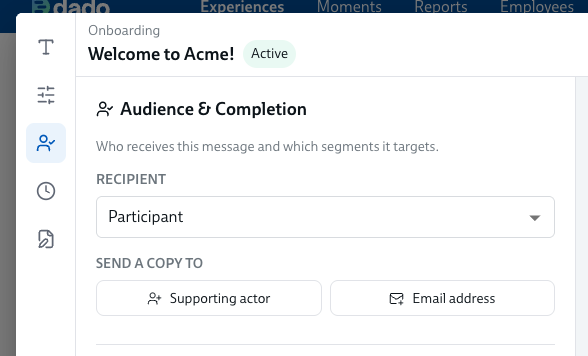
- Under Send a copy to, click Supporting actor.
-
Choose a Supporting Actor from the list. Each one shows which email address the copy will go to, for example Manager (Work Email)
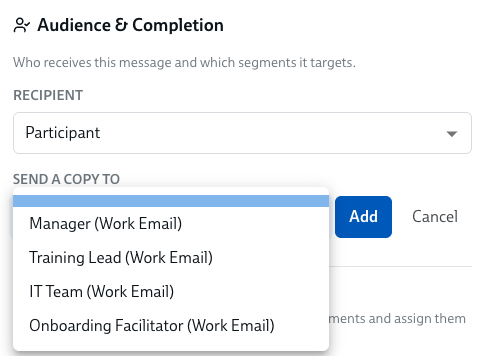
- Click Add. The Supporting Actor now appears as a tag under Send a copy to.
- To send a copy to more Supporting Actors, repeat steps 3 to 5.
- Save your changes.
You can combine Supporting Actors and email addresses on the same Task or Message.
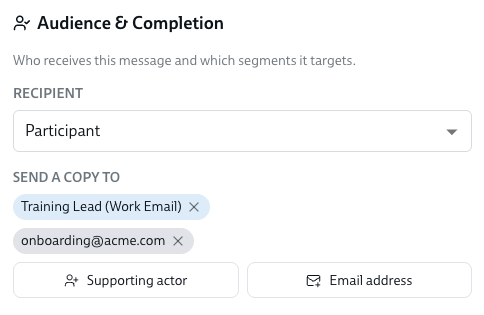
If a Supporting Actor you've chosen isn't assigned for a Participant, or doesn't have an email address, you'll see an issue in the Issues Bar. If that Supporting Actor won't be needed for every Participant, set them as optional in your Experience settings and the issue won't show. Learn more about Supporting Actors and making them optional.
How to send a copy to one or more email addresses
Send a copy to an email address when it should always go to the same place, such as a shared team inbox. You can also insert a data field that contains an email address, so the copy goes to a different address for each Participant.
- Open the Experience in edit mode, then click the Task or Message to open the Task window or Message window.
-
Open the Audience & completion tab in the left sidebar.
- Under Send a copy to, click Email address.
-
Type in the email address, for example onboarding@acme.com. Or insert a data field that contains an email address, for example a Custom Field that holds the email of the Participant's local HR team. Learn more about inserting data fields.
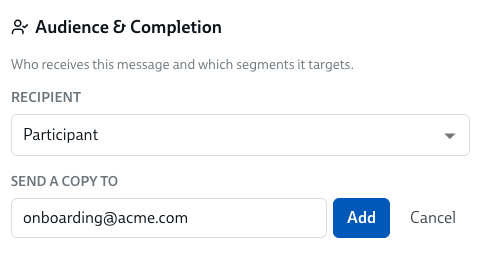
- Click Add. The email address now appears as a tag under Send a copy to.
- To send a copy to more email addresses, repeat steps 3 to 5.
- Save your changes.
You can combine Supporting Actors and email addresses on the same Task or Message.
How to remove "send a copy" recipients
- Open the Experience in edit mode, then click the Task or Message to open the Task window or Message window.
-
Open the Audience & completion tab in the left sidebar.
-
Under Send a copy to, click the x on the tag of the Supporting Actor or email address you want to remove.
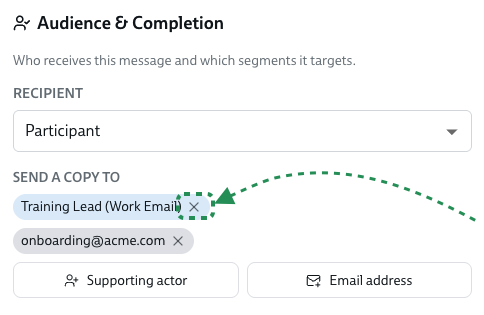
- Save your changes.
What the copy recipient receives
A copy recipient receives a separate email with the same content as the original notification, with a note at the top clarifying they've been sent this as a copy. Copies are sent by email only, not by Microsoft Teams, Slack or SMS.
- Batched Tasks and Messages are included. If the Task or Message is batched together with other Tasks or Messages in one notification, the copy recipient receives the whole batch.
- They can read, but not act. Copy recipients can see the content of the notification, but they can't complete Tasks on the assignee's behalf, and they can't open the assignee's Experience Hub.
- They get the first notification, but no reminders and no resends. If you resend a Task or Message, the copy recipient will not receive a new copy. Reminders go to the assignee only.
For example, Amara is starting as a Product Designer. Her welcome Message is set to send a copy to her Manager, and it's batched with two Tasks for Amara: "Complete your profile" and "Choose your laptop". Her Manager, Wei, receives one email with the Message and both Tasks. Wei can see what Amara has been asked to do, but can't complete the Tasks for her, and won't receive the reminders Amara gets.
Dado sends a separate copy to these recipients, rather than cc-ing them on the copy send to the assignee. This is to ensure that these extra recipients cannot accidentally complete tasks that should be done by the assignee.