
UKG Pro Integration
Contents
- What can you do with a Dado-UKG Pro integration?
- What data is exchanged between Dado and UKG Pro?
- How to set up the UKG Pro integration
What can you do with a Dado-UKG Pro integration?
The Dado <> UKG Pro integration lets you use UKG Pro as a source for importing and updating employee data in Dado, so people can be enrolled into Experiences without manual data entry
What data is exchanged between Dado and UKG Pro?
UKG Pro data accessible to Dado
Dado connects to UKG Pro via their API, and so in theory can access a large amount of data about your employees. In practice, which data is synced to Dado is determined by you, when you set up UKG Pro as an import source and select which fields should be imported.
Once the integration is set up, Dado will import data for all users in UKG Pro. That means it is not possible to restrict Dado's access to a subset of the users in UKG Pro.
Dado data accessible to UKG Pro
By default, no Dado data is accessible to UKG Pro.
You can choose to set data collected via 'Answer question', 'Choose option' or 'Provide address' sub-tasks to sync back to UKG Pro, to a field that you specify, via Dado's Data Destinations feature.
How to set up the UKG Pro integration
Time required: 15-20 minutes
Prerequisites: System Administrator access in UKG Pro
Step 1: Create a service account in UKG Pro
-
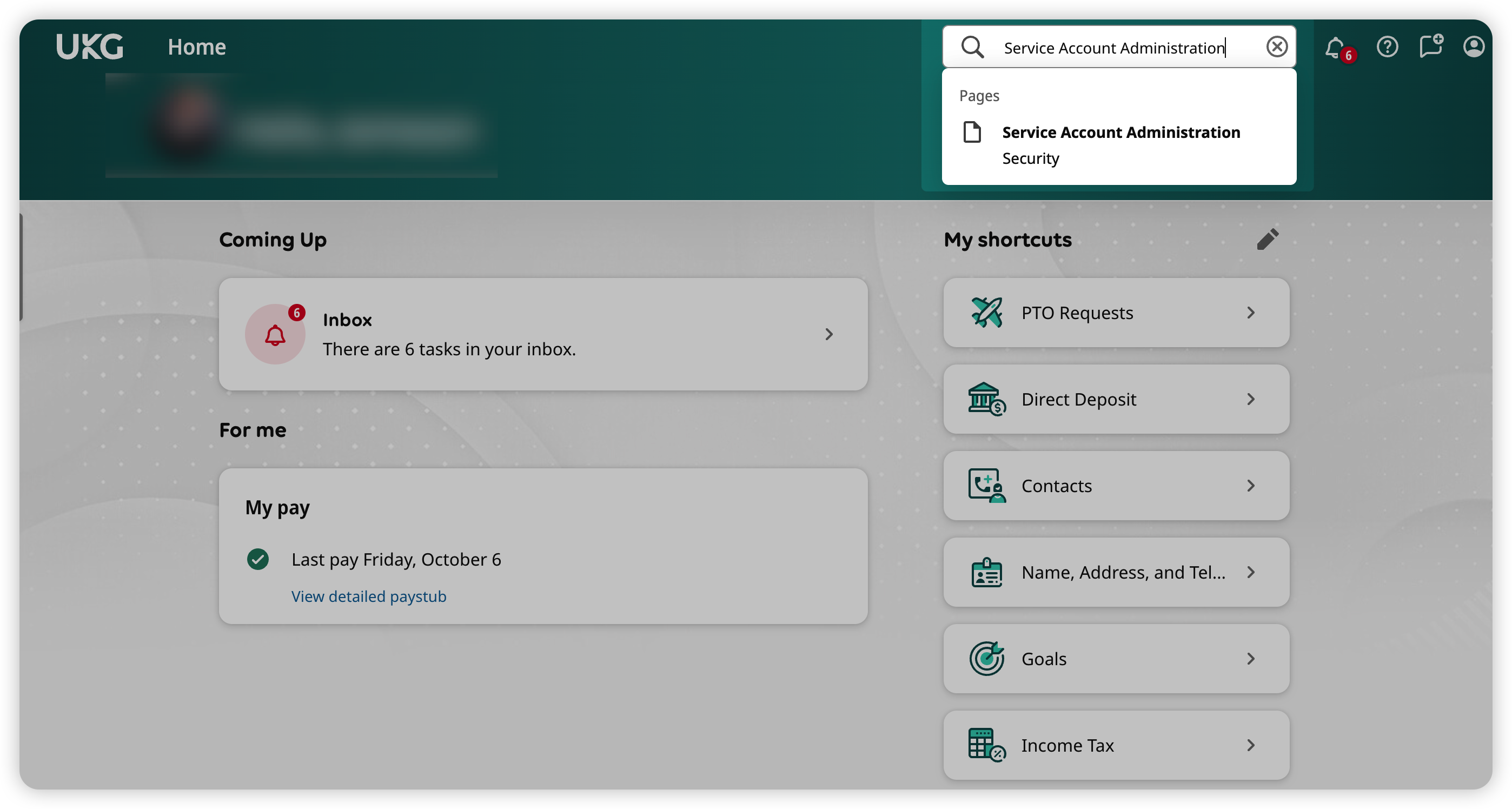
In UKG, search for Service Account Administration in the top right.
-
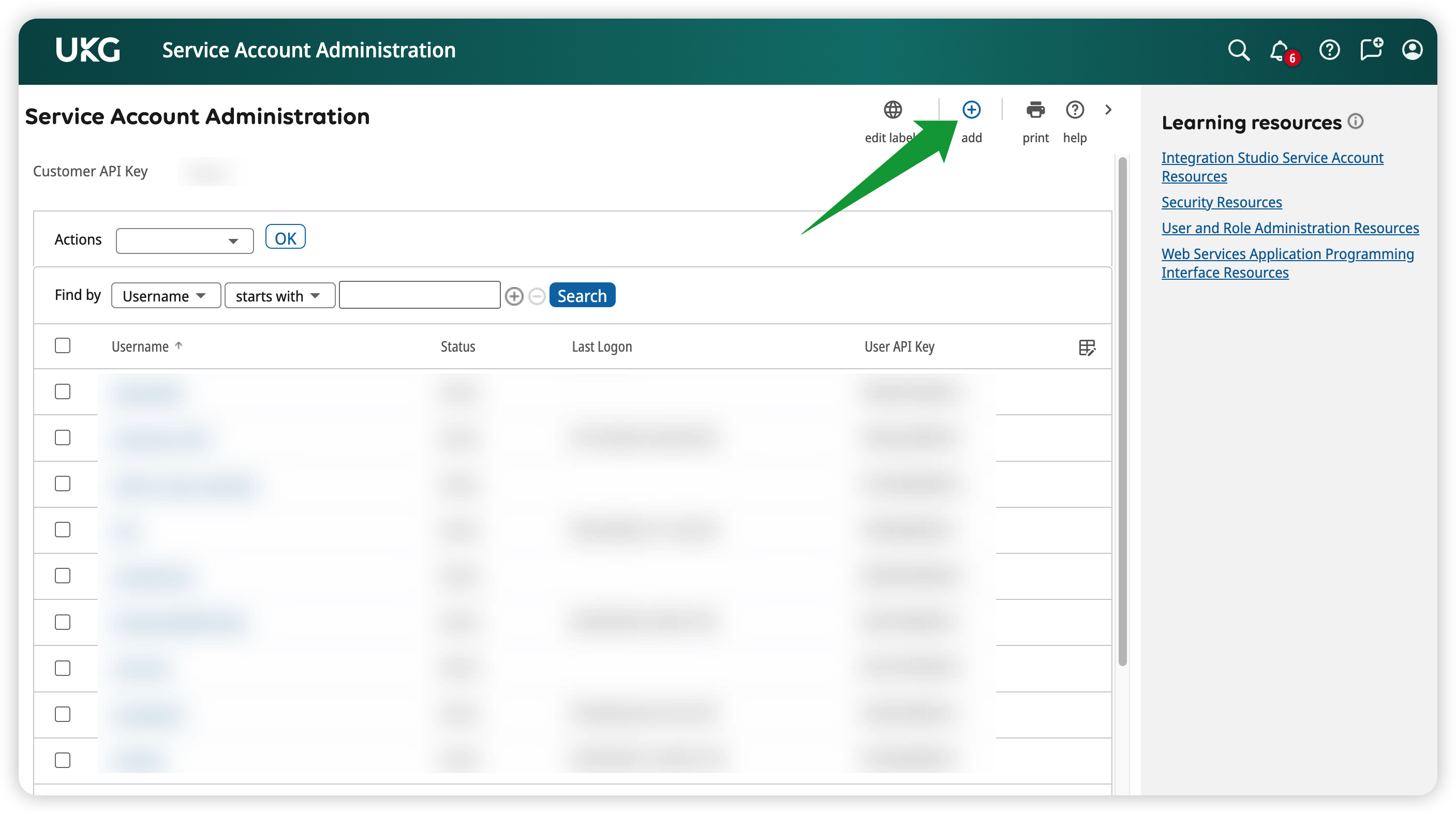
On the Service Account Administration page, click + add in the top right
- Input the requested details to create your service account. Keep a record of the username; you'll need it in a later step.
- Username (e.g., Dado_Integration)
- Password: select Generate New Password
-
Email address (an IT distribution address works well)
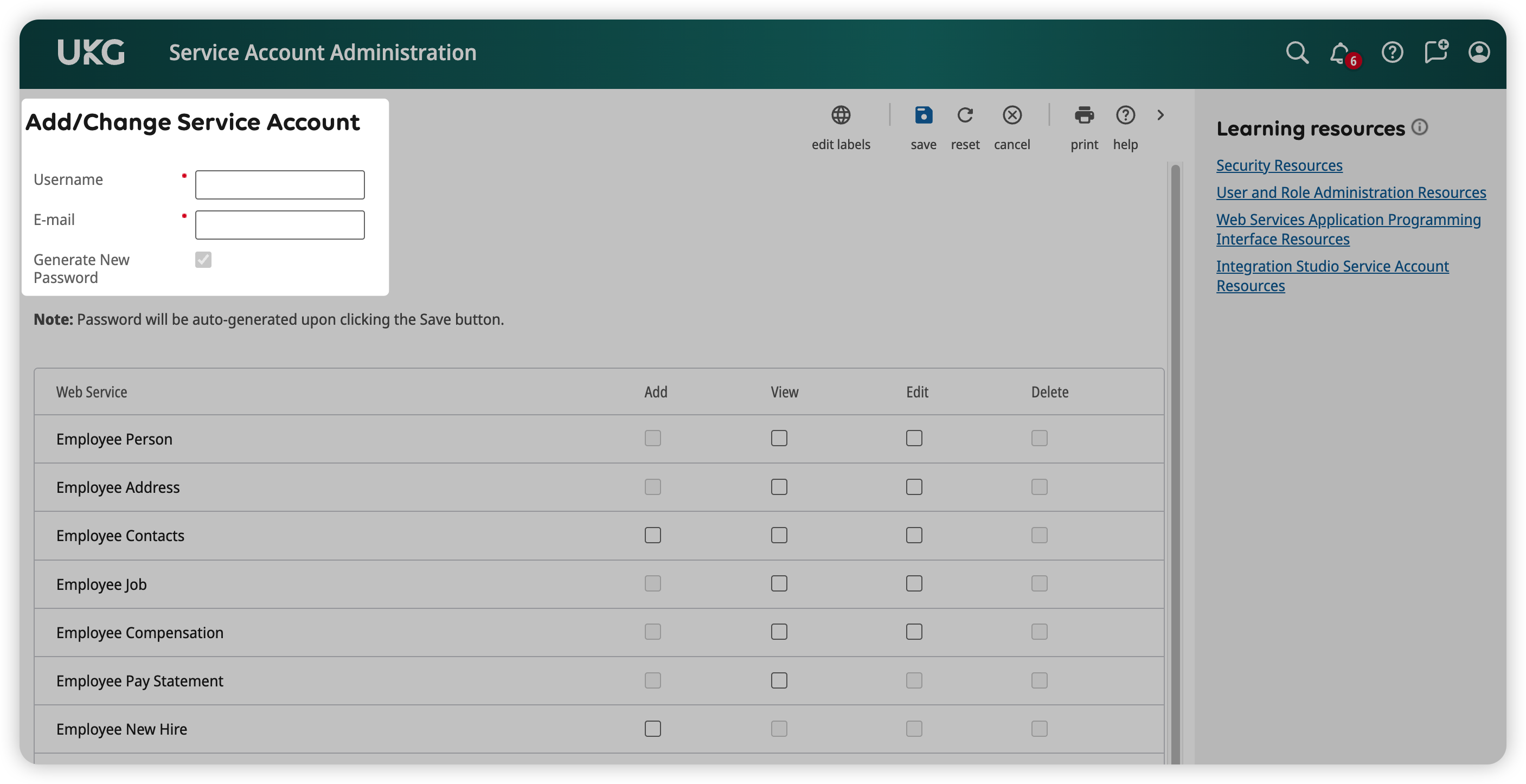
- On the same page, scroll down under Web Service and select View and Edit for the following:
- Company Configuration Integration
- Employee Address
- Employee Employment Information
- Employee Job
- Employee Job History Details
- Employee Person
- Employee Person Details
- Employee Phone Information
- Employee Termination
- Employee User Defined Fields
- Personnel Integration
- Click Save when you've granted all these permissions.
- The User API Key and password for the new service account will be displayed at this point. Make a copy of them both, as you'll need them at a later stage.
Step 2: Get your UKG Pro Customer API Key and Web Service Domain
-
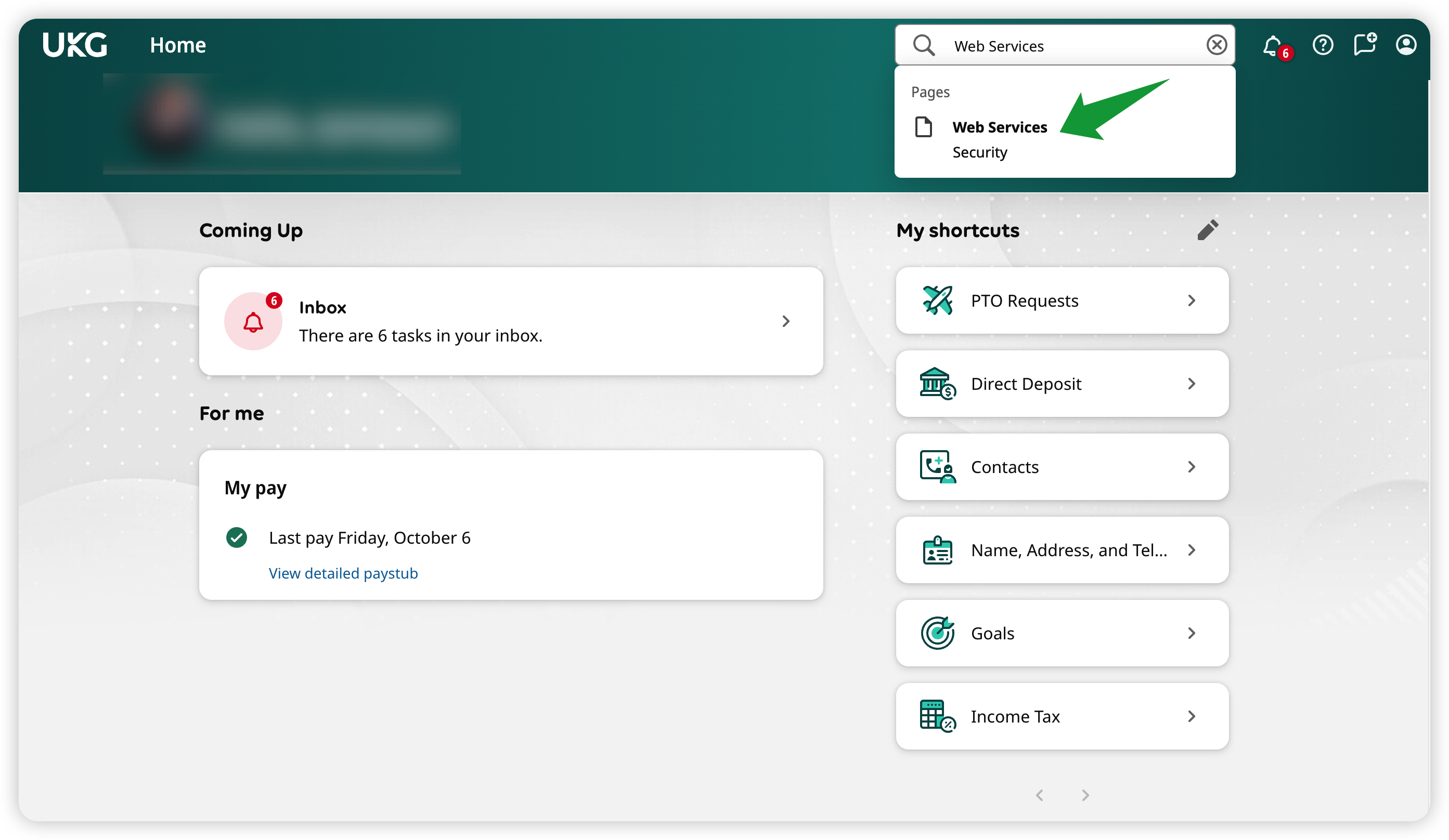
In UKG Pro, search for "Web Services" in the search bar
-
You'll find the Customer API Key near the top of the page. Make a note of this; you'll need it in the next step.
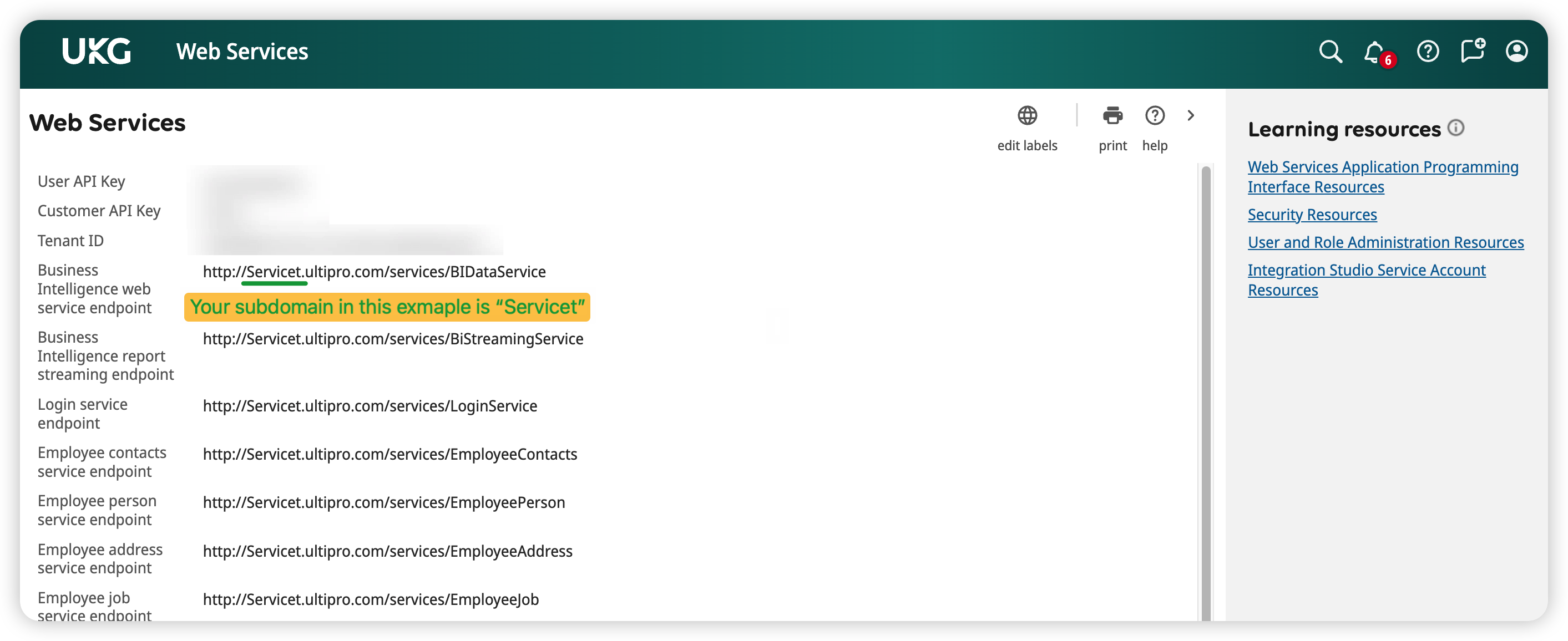
- Look at any of the URLs on this page and copy one of them, removing everything after .com
- For example your URL may look something like this: https://service5.ultipro.com/services/BIDataService
- You'd then copy just https://service5.ultipro.com
- You'll need this URL in the next step
Step 3: Set up the integration in Dado
- In your Dado account, go to Settings > Integrations. Click on the UKG Pro (API) card.
- Enter the information you collected in previous steps
- Service URL – from the Web Services page
- Customer API Key – from the Web Services page
- Service Account Username – for your newly-created service user
- Service Account Password – for your newly-created service user
- User API Key – for your newly-created service user
- Click Save.
- It may take a few seconds to finalize the connection with UKG Pro. The connection has been successfully set up when you're returned to the Integrations page.
You're now ready to set up UKG Pro as an import source, and start importing data into Dado.