
Archiving Supporting Actors
Contents
- What happens when you archive a Supporting Actor
- Archiving vs. editing a Supporting Actor
- Archiving vs. removing a Supporting Actor
- How to archive a Supporting Actor
- Finding archived Supporting Actors
- How to unarchive a Supporting Actor
Responsibilities in your team can shift over time. It's common to start off with Supporting Actors in an experience who no longer play a part later on – for instance, a Training Facilitator role that's since been handed over to someone else.
Archiving lets you keep your list of Supporting Actors down to the latest, most relevant set of people, without losing anything from the experience.
If the role still exists but someone else now fills it, you don't need to archive: edit the Supporting Actor instead.
What happens when you archive a Supporting Actor
- The Supporting Actor no longer appears anywhere in your experience settings, except in a dedicated archived list (see Finding archived Supporting Actors).
- You can't assign them a new Task or Message.
- Their data can no longer be used as a variable in Tasks, Messages, or Automations.
- They can't be included in Automations – for instance, added to a calendar invite, an Asana ticket, or a Jira ticket.
- Archiving is fully reversible. You can unarchive a Supporting Actor at any time: see How to unarchive a Supporting Actor.
Archiving vs. editing a Supporting Actor
Once an experience is launched, you can edit everything about a Supporting Actor except their title. For instance, you could change who is assigned as the "IT" supporting actor, but you couldn't change the title of the "IT" supporting actor to "IT Help Desk".
If you need to change the title of a supporting actor:
- Create a new supporting actor with the title you'd like to use
- Reassign all tasks and messages to the new supporting actor, and update any references in the experience content
- Archive the old supporting actor.
Archiving vs. removing a Supporting Actor
Dado gives you two ways to retire a Supporting Actor, and which one is available to you depends on whether the experience has launched:
- Remove permanently deletes the Supporting Actor from the experience. This is only possible while the experience is still in draft (not yet launched), and only if the Supporting Actor isn't referenced anywhere in the experience.
- Archive hides the Supporting Actor without deleting them, and can be done at any time, including after the experience has launched. It's also only possible once the Supporting Actor isn't referenced anywhere in the experience, but unlike removing, it can be undone.
Once an experience has launched, archiving is your only option for retiring a Supporting Actor. You will not see a Remove option at this stage.
How to archive a Supporting Actor
- Go to the Experience you want to change, and click Edit on the top right of the Overview screen.
- Make sure you're on the Timeline. If needed, click Timeline in the left-hand navigation.
-
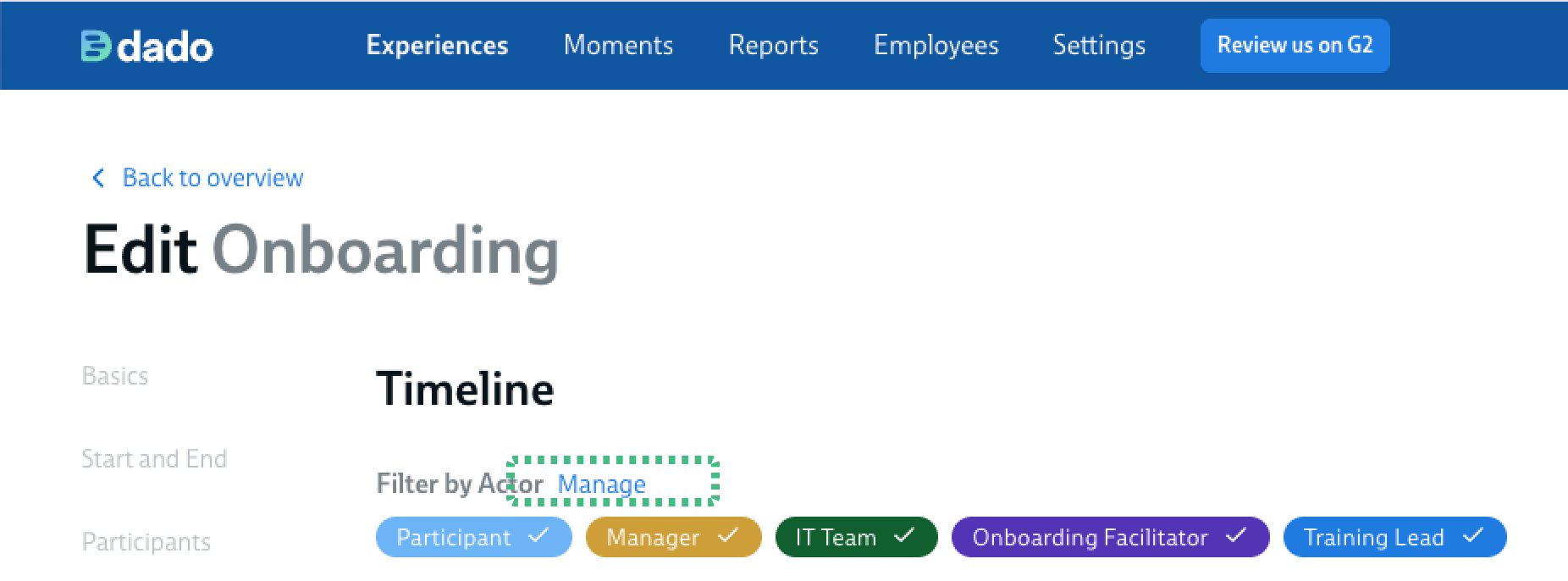
Above the Timeline, next to Filter by Actor, click Manage.
-
In the Manage supporting actors sidebar, find the Supporting Actor you want to archive and click the pencil icon next to it.
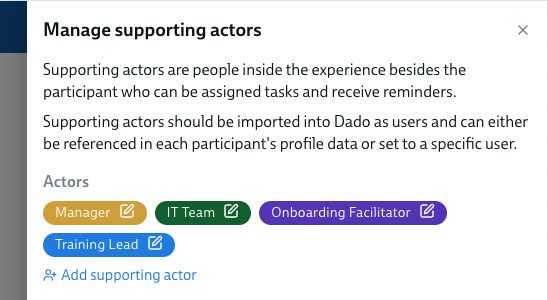
- This opens the Edit supporting actor window. Click the Archive button in the bottom left.
-
If the Supporting Actor is still in use anywhere in the experience, you'll see a message explaining that they can't be archived yet, along with a full list of every place they're referenced – for example, a Task, a Message, a piece of content, or an Automation such as a calendar invite, Jira ticket, or Slack channel invite.
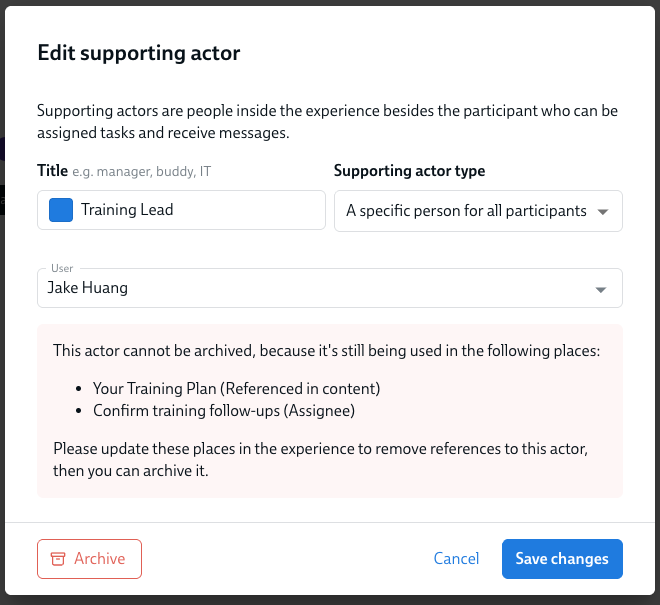
- You'll need to update or remove each of these references before you can archive the Supporting Actor. See How to reassign Tasks and Messages for instructions on re-assigning tasks/messages.
- Once there are no remaining references, click Archive again.
-
Finding archived Supporting Actors
Archived Supporting Actors don't show up in your experience settings, Timeline filters, or anywhere Supporting Actors can normally be assigned. To see them:
- Open the Experience you want to update, and navigate to the Timeline.
- Open the Manage supporting actors sidebar, by clicking Manage next to Filter by Actor above the Timeline.
-
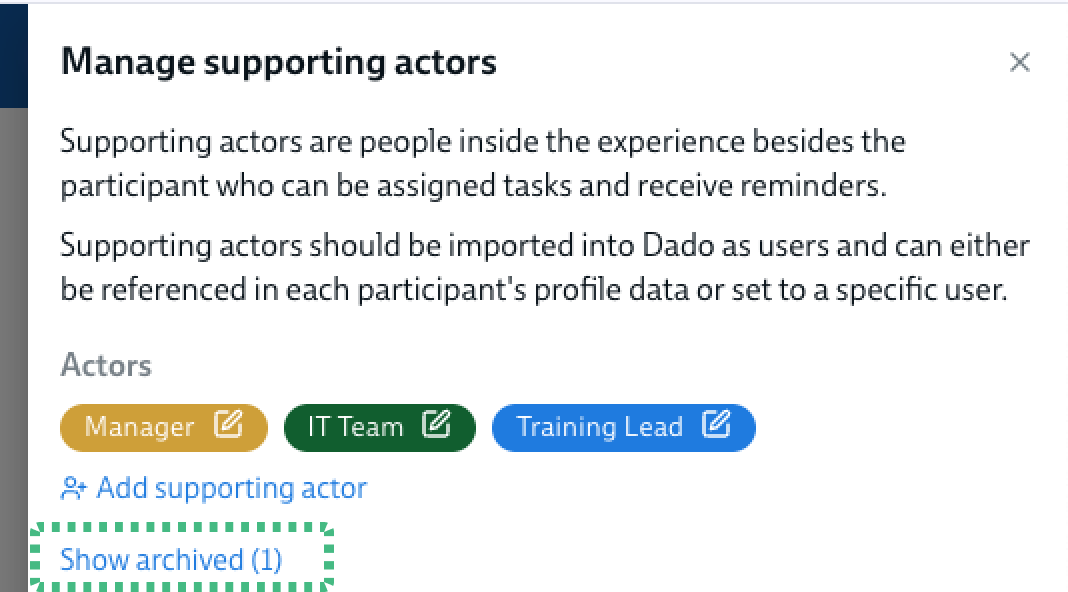
Click Show archived to reveal any archived Supporting Actors in the list. Click Hide archived to hide them again.
How to unarchive a Supporting Actor
- Open the Experience you want to update, and navigate to the Timeline.
- Open the Manage supporting actors sidebar, by clicking Manage next to Filter by Actor above the Timeline.
- Click Show archived to reveal the archived Supporting Actor.
- Click the pencil icon next to the Supporting Actor you want to bring back.
- Click Unarchive.
There are no restrictions on unarchiving – you can do this at any time, and the Supporting Actor becomes available for Tasks, Messages, and Automations again straight away.
Related articles