How to trigger Tasks/Messages/Automations to start based on user data changes
There are multiple ways to determine when in your experience each Task, Message or Automation will start:
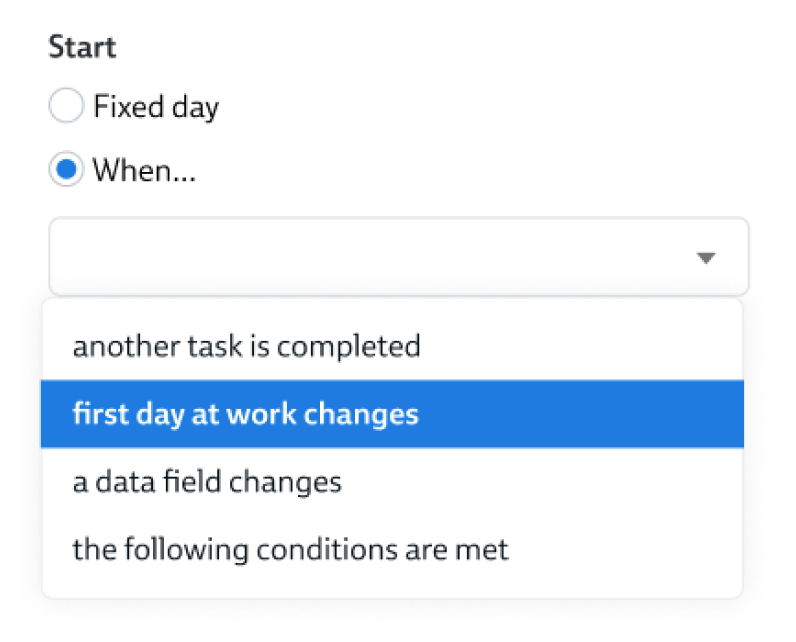
This article focuses on starts triggered by data changes. These include:
- When a data field changes – for instance when the "Onboarding location" changes
- When a milestone date changes – for instance, when the start date for a new hire changes
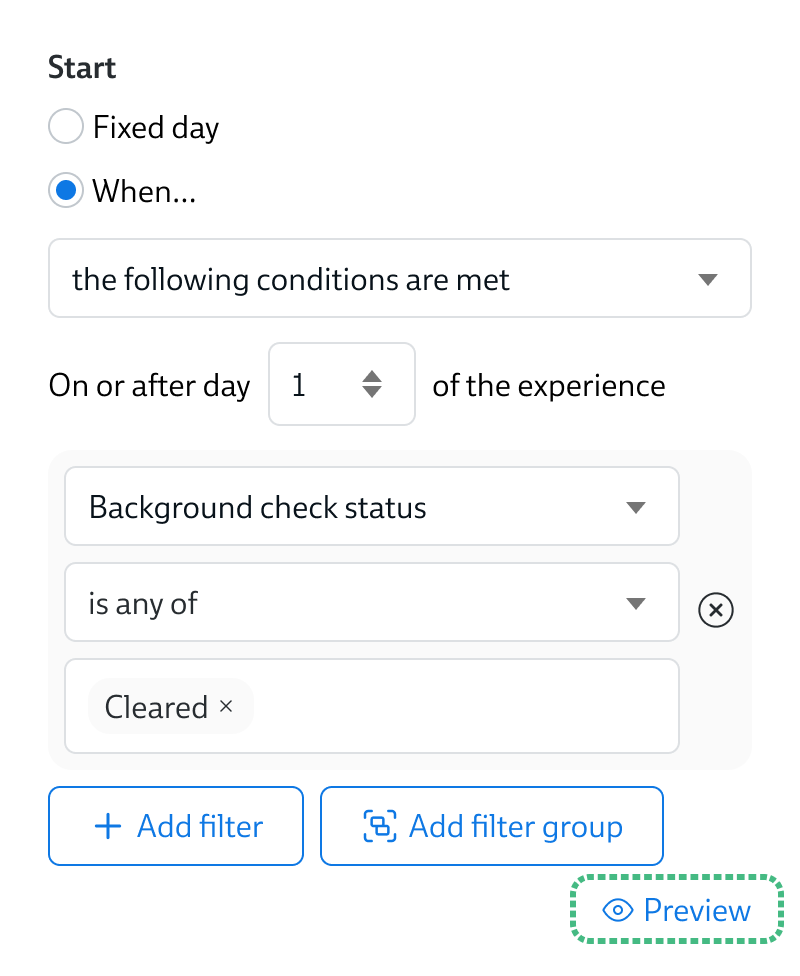
- When the following conditions are met – for instance, when the "Background Check Status" field contains "Cleared"
Contents
- How to set up a Task/Message/Automation to start when user data changes
- How the "When a data field changes" start trigger works
- How the "When [milestone date] changes" start trigger works
- How the "When the following conditions are met" start trigger works
- Selecting the right "On or after date"
How to set up a Task/Message/Automation to start when user data changes
To configure when your Task/Message/Automation starts, open up the Task/Message/Automation in the 'edit' mode of your experince.
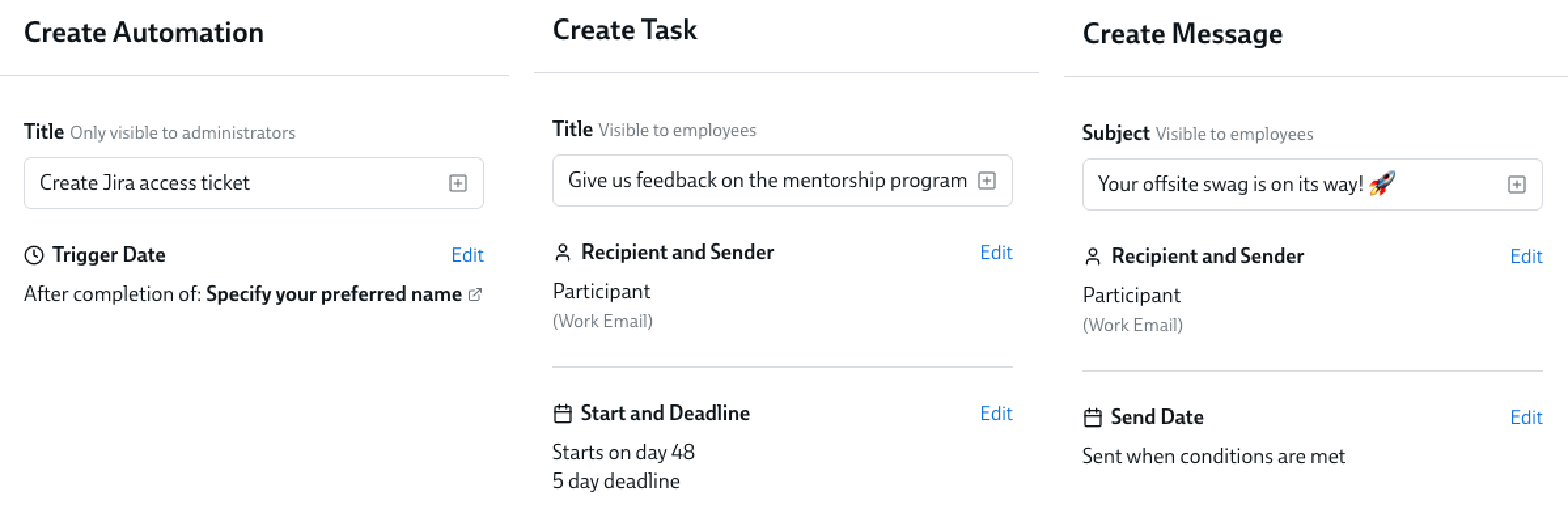
In the left hand column, you'll see a section for the Start, Trigger or Send date:
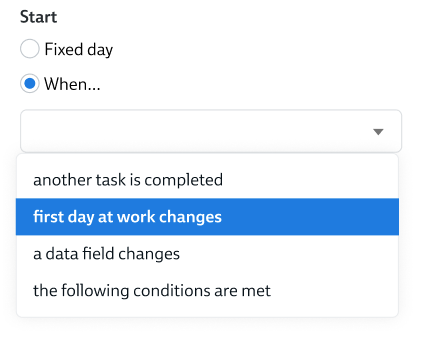
Click Edit and then When, and you'll see three options for data change-triggered starts, as well as the option to start the Timeline Item when another task completes.
See the sections below to understand the difference between these options.
How the "When a data field changes" start trigger works
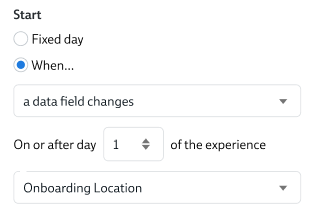
When you select this option, the Timeline Item will trigger within a few seconds of any change to the data field you've selected – as long as it's after the "On or after" date you select.
If the Participant has not yet reached the "On or after" date you select in their experience, the Timeline Item will not trigger immediately. Instead it will trigger as soon as that date is reached, as the default start time of your experience (usually 9am).
For more guidance on selecting the appropriate "On or after" date, see the section below
Use cases for this type of start trigger
- send a new hire their laptop set up instructions once IT has provided a shipping tracking ID (so you know the laptop has really shipped)
- when the new hire's work email address has been decided, let their manager know so they can send calendar invites
Any data change to the selected field will trigger the start of the Timeline Item
All kinds of changes to the selected field will trigger the Timeline Item to start, including:
- If the field changes from blank to having a value
- If the field changes from one value to another
- If the field changes from having a value to being blank
This start trigger is always based on the Participant's data
Timeline Items with this kind of start trigger are watching the data on the user profile of the Participant in this experience. It isn't possible to set up Timeline Items to trigger based on data changes to the Supporting Actors' profiles.
The Timeline Item will only trigger once
When you use this kind of start trigger, the Task/Message/Automation will only trigger the first time the data changes.
If the selected data field never changes after the Participant is enrolled, the Timeline Item will never trigger
Only data changes after enrollment count for triggering these Timeline Items. If the Participant's data changes before they're enrolled, but stays the same after they're enrolled, this Timeline Item never changes.
If this is a potential scenario, try using the When the following conditions are met start trigger.
How the "When [milestone date] changes" start trigger works
When you set up your experience to trigger based on a milestone date (such as birthday, anniversary, first day at work, last day at work), you will see an extra option in the start triggers, that references your milestone date:
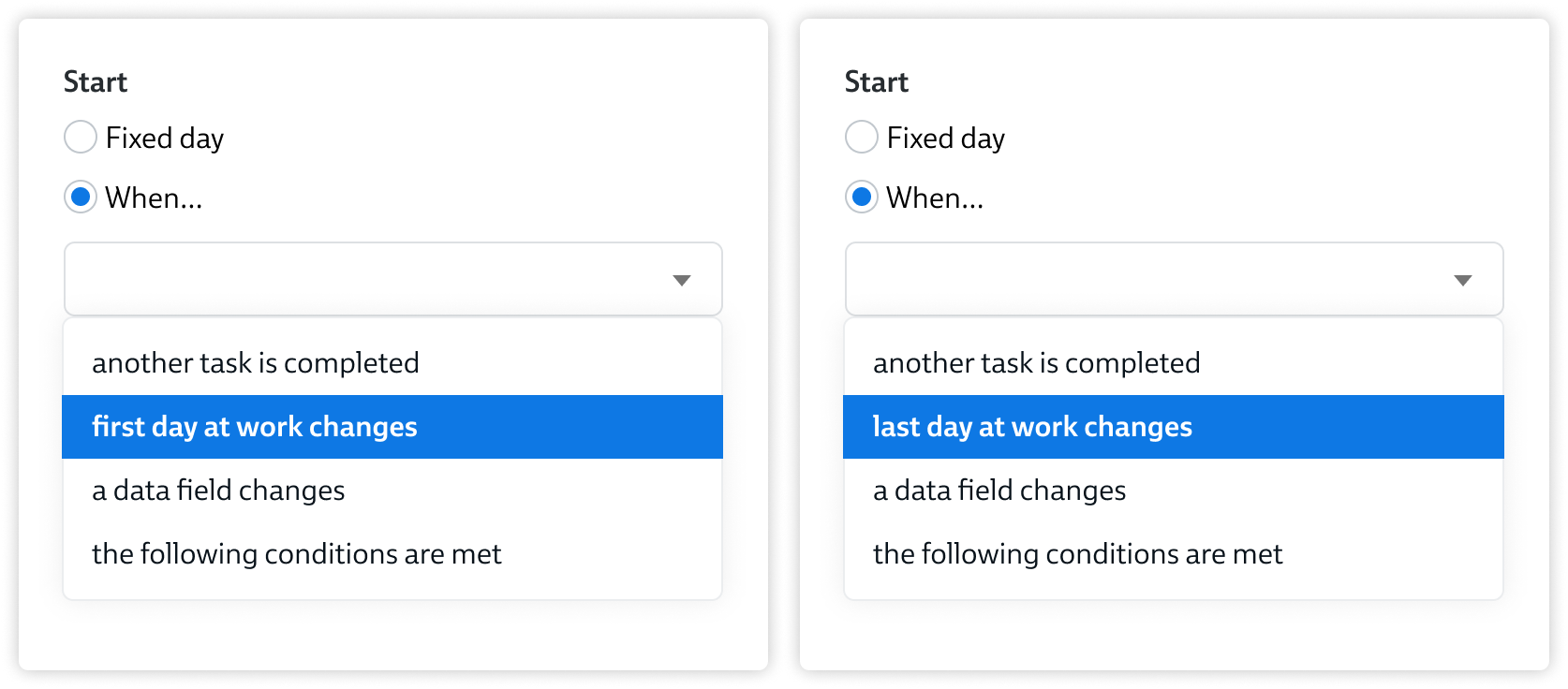
This start trigger option works exactly the same as the "When a data field changes" option, so please reference the section above for full details.
How the "When the following conditions are met" start trigger works

When you select this option, the Timeline Item will trigger as soon as the user profile data matches the rules you set up – as long as it's after the "On or after" date you select.
That means that the Timeline Item will start:
- As soon as the "On or after" date, if the Participant user data already match the rules by that point
- If you've set the "On or after date" to be Day 1, this means the Timeline Item will start immediately after the Participant's experience starts
- If the "On or after" date has passed, the Timeline Item will start within a few seconds of the Participant's data being updated, if the updated data matches the rules
For more guidance on selecting the appropriate "On or after" date, see the section below
Use cases for this type of start trigger
- As soon as your new hire is marked as "Cleared to start", send them a congratulations note, or enroll them in your Onboarding
This start trigger is always based on the Participant's data
Timeline Items with this kind of start trigger are watching the data on the user profile of the Participant in this experience. It isn't possible to set up Timeline Items to trigger based on the data in the Supporting Actors' profiles.
The Timeline Item will only trigger once
When you use this kind of start trigger, the Task/Message/Automation will only trigger once, when the Participant's data first changes to match these rules.
The Participant's data can change via import, sub-task, or direct editing
Regardless of how the Participant's data changes, as long as it matches the rules, the Timeline Item will start. Specifically, the Participant's data can be changed via:
- An import
- A subtask that updates a Dado field (via the Data Destinations feature)
- Directly editing the Participant's data on their User Profile
- Submitting an Enrollment form to enroll this Participant into another experience
If the Participant's data never matches the rules, the Timeline Item will never trigger
Be careful about the rules you set up, because if the Participant's data never matches these rules, the Timeline Item will never trigger.
Use the "Preview" feature to be sure you've set up the rules correctly, by looking at which employees already match your rules.
Selecting the right "On or after" date
As well as determining the data change that will trigger the start of your Timeline Item, you can specify a date limitation. Essentially, you're telling Dado "Don't let this Timeline Item start before X date, even if the data changes in the right way".
This supports use cases such as:
- send a new hire their laptop set up instructions once IT has provided a shipping tracking ID (so you know the laptop has really shipped) – but no sooner than 3 days before the new hire's first day at work
If you want your Timeline Item to trigger at any time from the start of the experience onwards, select 1 in this field.

If you want the Timeline Item to trigger at a later stage in the experience, you'll need to select the right day in the experience.
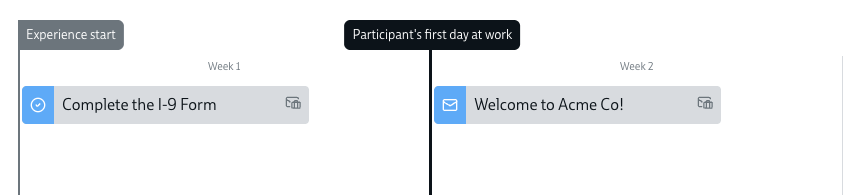
These days are counted from the start of your experience – not from the Milestone date. For example, in the screenshot below:
- "Complete the I-9 Form" starts on Day 1 of the experience
- "Welcome to Acme Co!" starts on Day 8 of the experience – ie, a full week after the start
- Even though this is the new hire's first day at work, it's still day 8 in the experience