
How to update user profile data in Dado
The data Dado holds about your workers comes from 2 different places:
- External systems: you can sync worker data into Dado from your HRIS, your ATS, from Google/Excel sheets and many other places
- Tasks completed by employees: when a worker completes a task, that data can be stored on the relevant person's user profile using our Data Destinations feature
The best way to edit the data Dado holds about a particular worker depends on where that data is coming from.
- To edit data that's synced into Dado from your HRIS/ATS/another external system
- To edit data that's synced into Dado from a Google/Excel sheet
- How to update data directly in Dado
To edit data that's synced into Dado from your HRIS/ATS/another external system
When the data points that need updating come from your HRIS or ATS, the best place to update them is in those 'source of truth' systems.
Updates to data in those systems will be synced to Dado the next time an import runs. Find out more about imports. If you have set up Dado to regularly, automatically import from these external systems, the data will be updated automatically – you don't need to do anything else. If you are importing manually into Dado, or you want the Dado data to be updated immediately, you can run a manual import.
Another option is to update the data directly in Dado. However, please be aware that changes made directly in Dado can be overwritten the next time you import data from external systems into Dado. To update data directly in Dado see 'How to update data directly in Dado' below.
To edit data that's synced into Dado from a Google/Excel sheet
If the data you want to update in Dado comes from a Google/Excel sheet that's already connected to Dado, then it's simple. Change the data in that sheet, and the update will be synced to Dado the next time an import runs. Find out more about imports.
If you have set up Dado to regularly, automatically import from these external systems, the data will be updated automatically – you don't need to do anything else. If you are importing manually into Dado, or you want the Dado data to be updated immediately, you can run a manual import.
Another option is to update the data directly in Dado. However, please be aware that changes made directly in Dado can be overwritten the next time you import data from external systems into Dado. To update data directly in Dado see 'How to update data directly in Dado' below.
How to update data directly in Dado
As well as updating data in the systems that sync data into Dado, it's also possible to directly update user profile data in Dado.
Any data updates you make directly in Dado might be overwritten the next time Dado imports from external systems (for instance, your HRIS or ATS).
To prevent this happening, make sure to make the same data update in your HRIS/ATS.
To update data directly in Dado:
- Go to the Employee List
- Find the worker whose data you want to update, either by scrolling or using the search bar in the top right. Click on their name.
-
You'll now be on the user profile page for this worker. Click on the Profile data tab
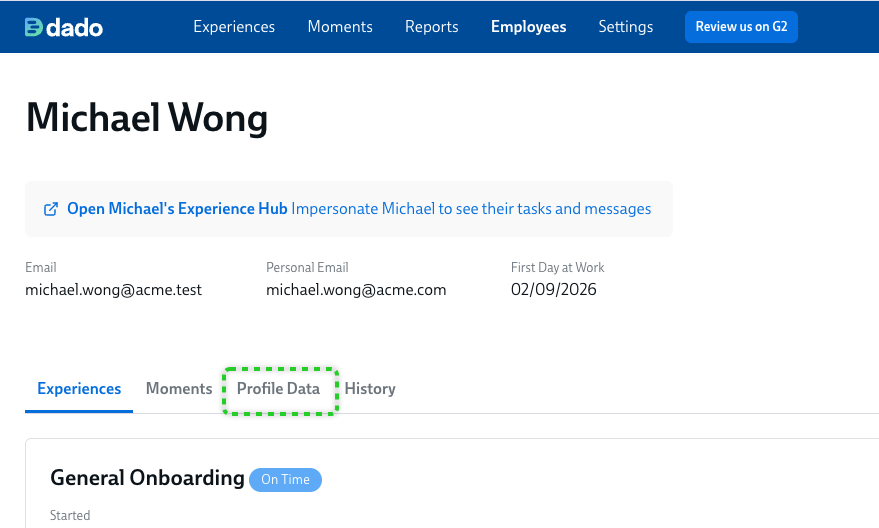
- On this tab, find the field you want to edit
-
When you hover over this field, you'll see an Edit link. Click this link.
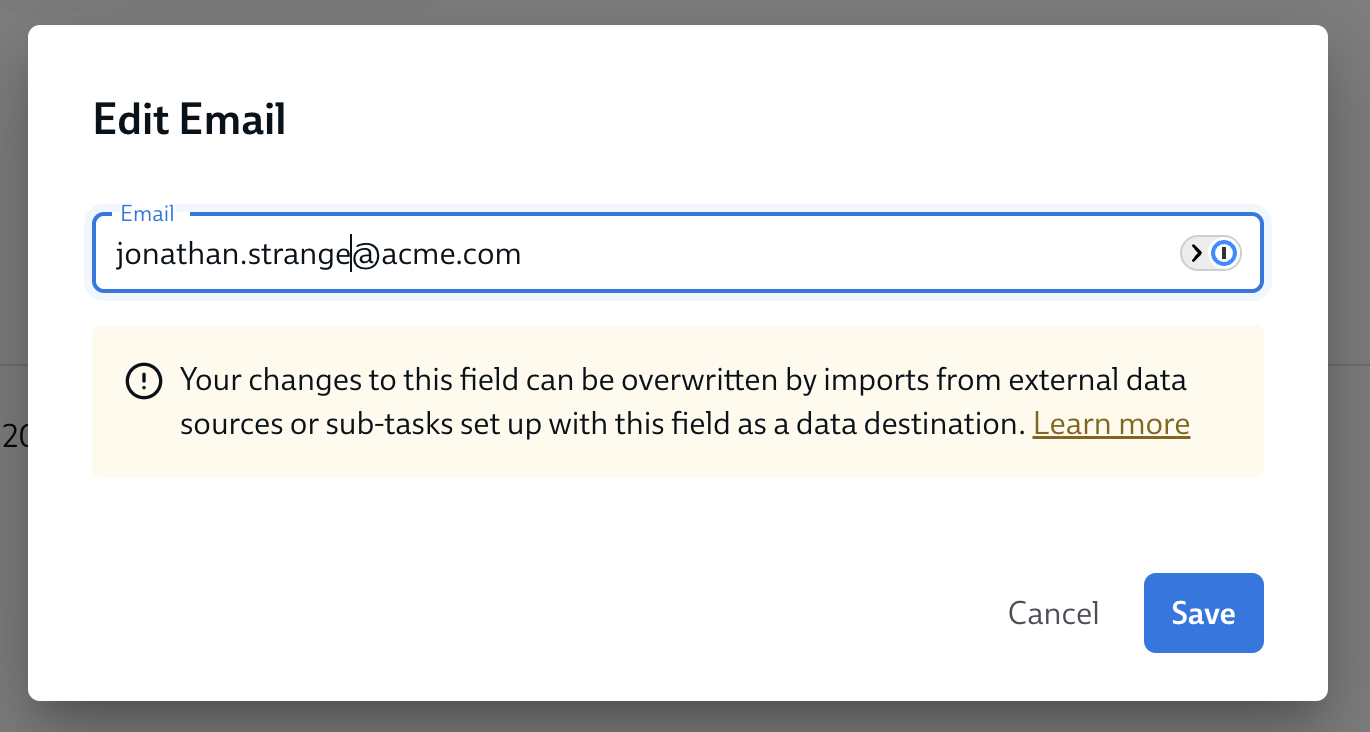
- Once you've made the changes you want to the field, click save.
