
Merging duplicate employee users
Contents
- How are duplicate user records created in Dado?
- How to prevent duplicate users being created in Dado
- How to merge duplicate users
How are duplicate user records created in Dado?
Non-overlapping data importing into Dado from different systems
Dado relies on certain key fields to uniquely identify employees, and detect if data coming from 2 or more different systems relates to the same person. Those fields are:
- Work and personal email address
- Unique system IDs, like employee ID or ATS candidate ID
- For these IDs to be considered unique IDs, they must be mapped to
Dado 'matches' information from different systems using these data points. For this to be possible, the same datapoint must come from multiple different systems. For instance:
- The same personal email address importing into Dado from your ATS and HRIS
- The same work email address importing into Dado from your HRIS and an Excel sheet which contains your mentor-mentee relationships
If an employee record exists in multiple systems, but does not share any of these key fields, this can lead to a duplicate record being created in Dado.
The most common scenarios are:
- The employee enters one personal email address into the ATS, and a different one into the HRIS
- An Excel or Google sheet import source uses a different version of the employee's work email address, from the one that's in the HRIS
- for instance: min@acme.com versus min.lei@acme.com
Duplicate records in the source system
If someone has a duplicate record in your ATS or HRIS, this duplicate will be re-created in Dado.
How to prevent duplicate users being created in Dado
- When you set up import sources, ensure that there is at least one common 'key field' between them. This is done when your set up the Field Mappings for an import source. For instance:
- Field Mappings for ATS and HRIS both include personal email or candidate ID
- Field Mappings for HRIS and any Google or Excel sheet data sources all include work email
- Field Mappings for Salesforce and HRIS both include work email
- Audit the systems you've connected to Dado to remove any duplicate records
How to merge duplicate users
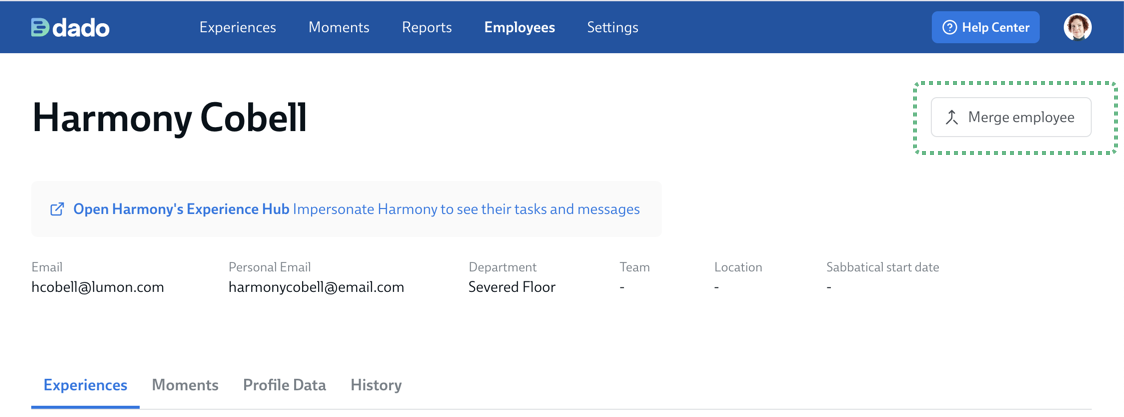
- Go to Employees > Employee list and search for one of the duplicate users. Click on their name to open their profile page.
-
Click the Merge employee button in the top right
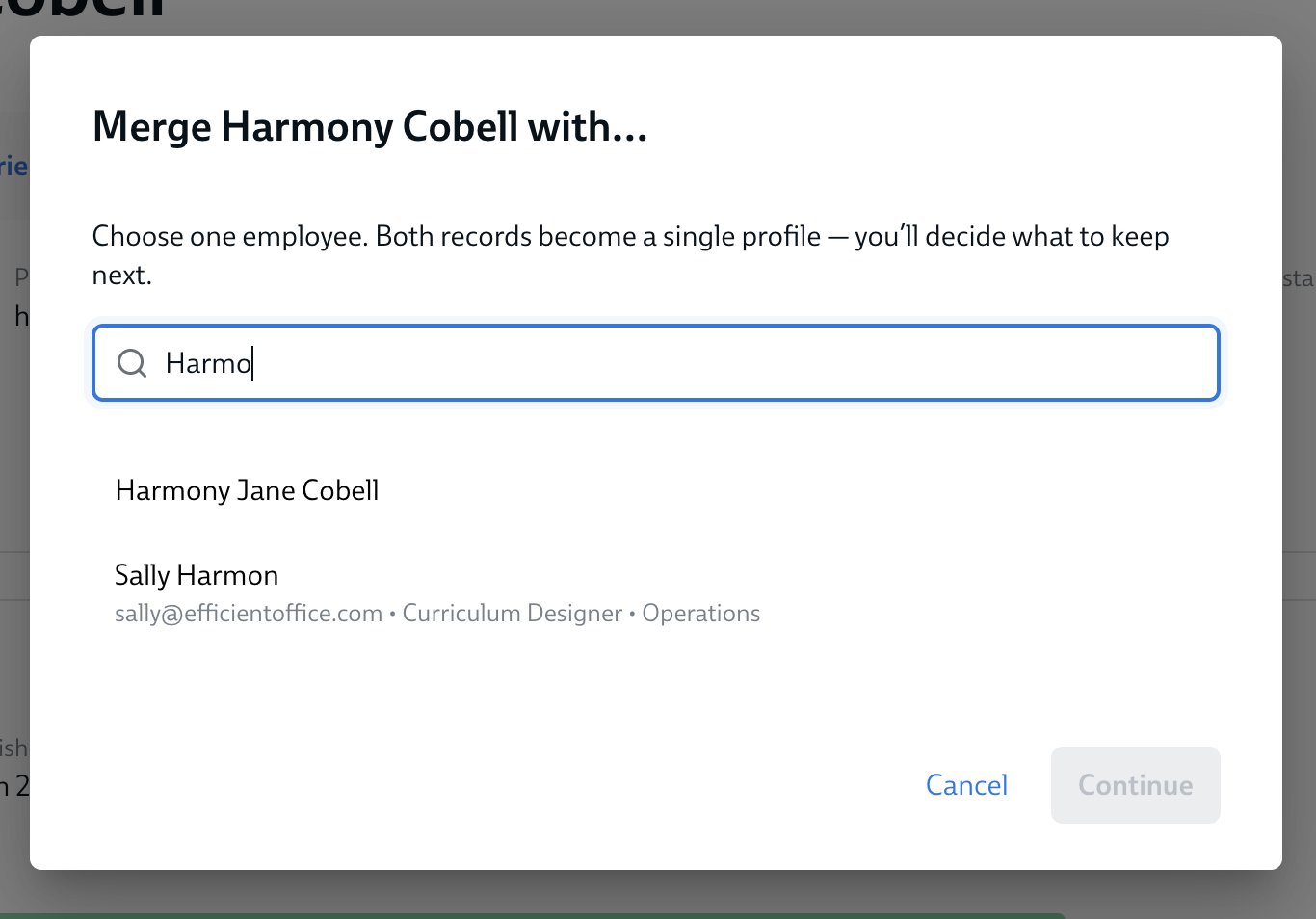
- In the new window, search for the other user you'd like to merge with this one. Select their name and click Continue
-
You can only merge 2 users at a time.
-
- If there is any conflicting data between the two employee profiles, you will be asked to select the data you wish to keep in the new combined record
- For each clashing data field, select the data you wish to keep
-
Then click Merge employees
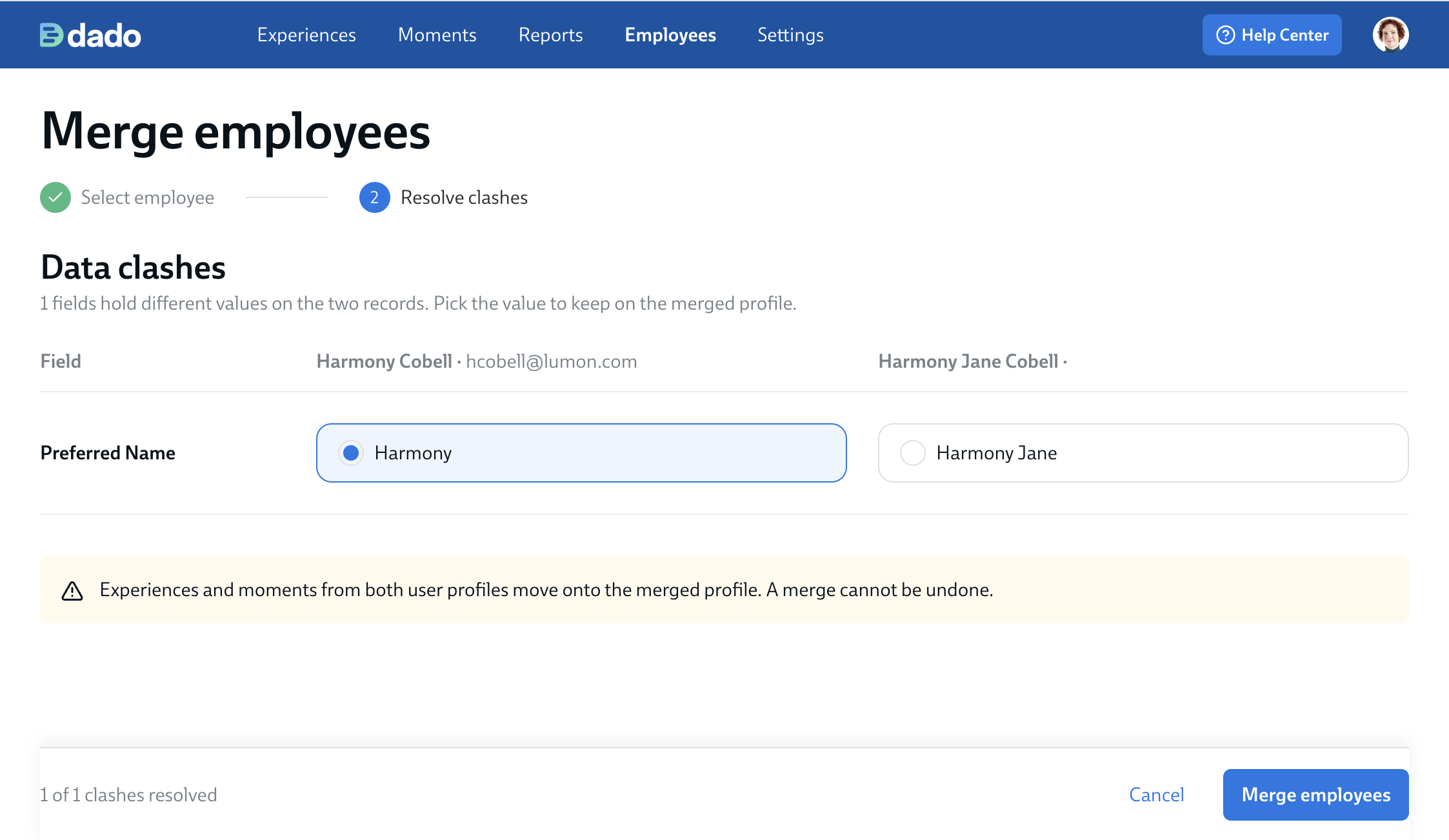
- Dado will now combine both records into one, and move all experiences and moments to the new combined profile.
