
How to deactivate/hide a task, message or automation in your experience
Sometimes you want to stop a Task, Message or Automation from going out, without deleting it. Dado now lets you deactivate any Task, Message or Automation directly, so it stops sending (or, for an Automation, stops running) until you turn it back on. This can be a quick temporary pause or a longer-term change.
You might want to do this when:
- You are still tweaking the content of a Task and don't want a half-finished version going out while you edit a live Experience.
- You have finished updating a Message, but you want a colleague to review or sign off before it reaches employees. For example, updated system access instructions that IT wants to look over first.
- You need to remove a step which doesn't apply right now. For example, your benefits enrollment Task is paused until the enrollment window opens, or your process has changed and you are skipping a step for the current cohort.
How to deactivate a Task, Message or Automation
- In the editable version of your Experience Timeline, click the Task, Message or Automation you want to deactivate.
-
In the top right corner of the editor, click the three-dot (⋮) menu.

- Select Deactivate.
- Click the blue Save button in the top right.
-
The item now appears greyed out in your Timeline, and its status shows as Deactivated.
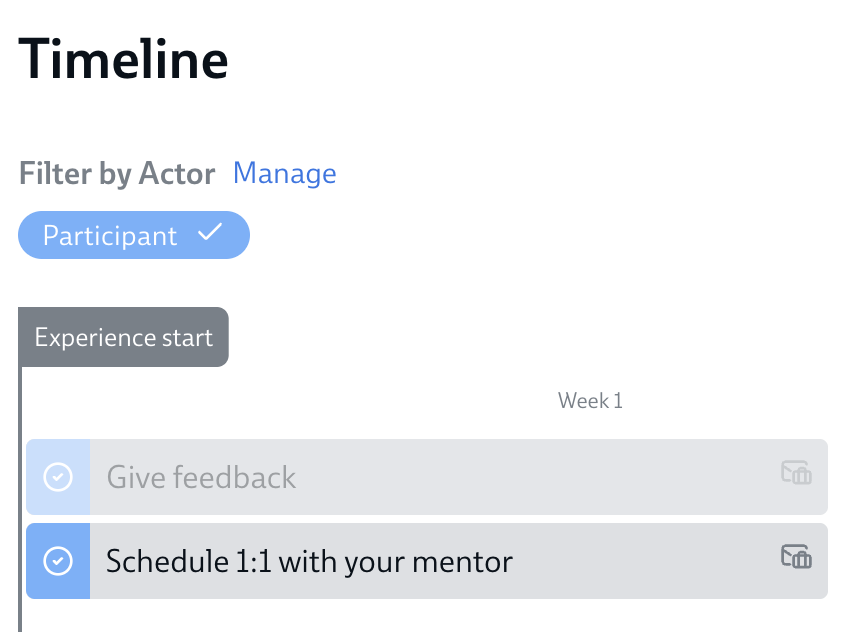
- Remember to save the Experience as well when you are ready.
What happens when you deactivate something
From the moment you deactivate a Task or Message, it won't be sent to anyone, and a deactivated Automation won't run, until you activate it again.
Blue callout: Deactivating only changes what happens from now on. It does not remove anything that has already started in a Participant's Experience. For instance, if a Task has already been sent to its assignee, deactivating won't remove it from their Experience. In short, it changes the future, not the past.
If you need to change or remove something for one specific person who already has it, see Move, resend or skip items in one Participant's Experience. For more on how edits reach people who are already enrolled, see How changes to an Experience affect Participants already enrolled.
How to reactivate a Task, Message or Automation
- In the editable version of your Timeline, click the deactivated Task, Message or Automation.
- You’ll be able to identify deactivated timeline items because they are greyed out.
- In the top right corner, click the three-dot (⋮) menu.
-
Select Activate.

- Click the blue Save button in the top right. The item returns to Active and shows normally in your Timeline again.
Deactivating turns off the whole item. If instead you want to show or hide only part of a Task or Message, or show it to just one group, that is handled through Target Audiences rather than deactivation. See how to send a Task or Message to just one Target Audience. To understand the Active and Deactivated labels alongside Dado's other statuses, see A guide to statuses of Tasks, Messages and Automations.